# Making your first Desktop Application with Electron
If you're a web developer who uses a lot of Javascript, and want to make a desktop application without having to learn anything else, Electron is the right thing for you!
With [Electron](https://www.electronjs.org/), you can build cross-platform applications with Javascript, HTML, and CSS.
%[https://github.com/kavin25/my-electron-app]
## Install Electron
Let's start of by creating a project and installing electron in it as a NPM Dev dependency
```sh
mkdir my-electron-app && cd my-electron-app
npm init -y
npm install -D electron
```
Your project structure should be like below
```
my-electron-app/
|--node_modules/
|--package.json
|--main.js
|--index.html
```
## Create main.js file
The `main.js` file will serve as the entry point for our electron application. It will run the main process to serve our application, control the lifecycle of the application, display the GUI, perform native OS interactions, create Renderer processes, etc.
### Import dependencies
```js
const { app, BrowserWindow } = require('electron');
```
We need these two modules to
1. Manage the app's lifecycle events
2. Create and Control the Browser Window
### Create Browser Window
```js
function createWindow () {
const win = new BrowserWindow({
width: 800,
height: 600,
webpreferences: {
nodeIntegration: true
}
})
win.loadFile('index.html')
}
app.whenReady().then(createWindow)
```
In this function, we are creating a Browser Window. We have set the width and the height to 800 and 600, respectively and have enable node integration. Then we are loading the index.html file in our window and serving it
#### Bonus Tip
You can also serve a url instead of a file by using
```js
win.loadURL('http://localhost:3000')
// OR
win.loadURL('https://livecode247.com')
```
### On Window Close
```js
app.on('window-all-closed', () => {
if (process.platform !== 'darwin') {
app.quit()
}
})
```
In this function, we quit the application when all the windows have been closed. However, we do not do it in a Darwin(OSX) because of the different window management process in the same
### New Window
You add a new listener that creates a new browser window only if when the application has no visible windows after being activated. For example, after launching the application for the first time, or re-launching the already running application.
```js
app.on('activate', () => {
if (BrowserWindow.getAllWindows().length === 0) {
createWindow()
}
})
```
Now that we have finished with the main script file, let's go to our HTML part
## Create a web page
Add the following to the `index.html` file created earlier.
```html
Hello World!
Hello World!
```
This is just a normal `html` file which has a heading `Hello World!`
## Update package.json
Now, before we serve the application, we need to make some changes to the `package.json` file.
### Main entry point
Update the `"main"` key to look like this
```json
"main": "main.js",
```
### Add Start script
Let's add a start script to our application like so,
```json
"scripts": {
"start": "electron ."
},
```
That's it! Now, let's try it out.
### Running the app
Run the following in the terminal
```sh
npm start
```
Now, an application window should startup in your device and should show this
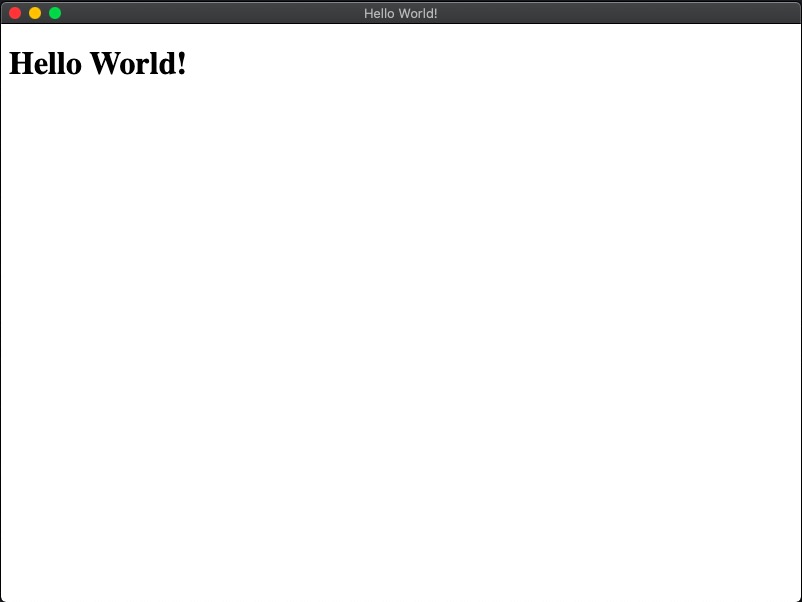
## BONUS
You can also add push notifications with electron. Let's try it out
Add the following to your `index.html`
```html
```
Now, when the app starts up, you should see, something like this

> Note: This will differ from OS to OS. The above is an image taken on OSX.
And when you click it, you should see `Notification Clicked` in the console.
You can open the developer toold by running `Cmd-option-i` on a Mac or `Ctrl-alt-i` on Windows/Linux.
That's it for this